This is default featured slide 1 title

Lorem ipsum dolor sit amet, consectetur adipisicing elit, sed do eiusmod tempor incididunt ut labore et dolore magna aliqua. Ut enim ad minim veniam. blogger theme by BTemplates4u.com.

This is default featured slide 2 title

Lorem ipsum dolor sit amet, consectetur adipisicing elit, sed do eiusmod tempor incididunt ut labore et dolore magna aliqua. Ut enim ad minim veniam. blogger theme by BTemplates4u.com.

This is default featured slide 3 title

Lorem ipsum dolor sit amet, consectetur adipisicing elit, sed do eiusmod tempor incididunt ut labore et dolore magna aliqua. Ut enim ad minim veniam. blogger theme by BTemplates4u.com.

This is default featured slide 4 title

Lorem ipsum dolor sit amet, consectetur adipisicing elit, sed do eiusmod tempor incididunt ut labore et dolore magna aliqua. Ut enim ad minim veniam. blogger theme by BTemplates4u.com.

This is default featured slide 5 title

Lorem ipsum dolor sit amet, consectetur adipisicing elit, sed do eiusmod tempor incididunt ut labore et dolore magna aliqua. Ut enim ad minim veniam. blogger theme by BTemplates4u.com.

Followers

Showing posts with label Windows. Show all posts

Sunday, October 14, 2012

ASUS Windows RT Tablet Vivo Tab RT Coming to AT&T As Well

AT&T is backing the Windows 8 tablet initiative big time, already taking under its wing the ASUS Vivo Tab RT with Win RT and the Samsung Ativ Smart PC. Both models are rumored to pop up in stores around the holiday season and I expect preorders to start either later this month or in early November.

Customers will get the devices from brick and mortar AT&T stores or online via the AT&T website. The 10.1 inch VivoTab with Windows RT was announced by ASUS back in August and its features include a quad core Tegra 3 processor, 32 GB of storage and 4G LTE connectivity. It ships with the ARM version of Windows 8 and a preview version of Office Home and Student 2013. The price for the model has yet to be revealed, but speculations say we should expect something around $400 – $500.

If you want more details about this ASUS device has 2 GB of RAM, WiFi, Bluetooth 4.0, NFC and a 2 megapixel camera at the front. At the back there’s an 8 megapixel camera with a single LED flash and autofocus. Would you prefer this model over a Transformer Android tablet?

If you like this post, make sure you subscribe to our RSS Feed or follow us on Twitter, Facebook, Google+, YouTube for more interesting articles and video reviews! Also you can recommend Tablet News on Google:

View the original article here

Friday, September 7, 2012

New Windows 8 tablets, phones at IFA

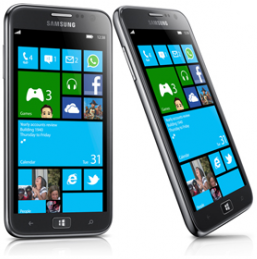
Ativ-SIFA, the consumer electronics show in Berlin, apparently is setting up as the de-facto unveiling for Windows 8 and Windows Phone 8 devices, with a number of manufacturers showing off devices this week.  While the show is decidedly Android focused, Sony and Samsung have both announced new Windows 8 tablets, and Microsoft, via its Windows Phone blog, is touting Samsung’s new “Ativ S” Windows Phone 8 device, a super thin (and super big) phone sporting some super specs:

8.7mm thin brushed aluminum chassis4.8” HD Super AMOLED displayCorning Gorilla Glass 21.5Ghz dual core processor1GB onboard RAM8MP rear facing camera1.9MP front facing camera16 or 32GB storage, both with Micro SD slot for more2300mAh batteryphysical Windows button

The Windows Phone blog post is promising a full recap of all the devices announced at IFA on August 31st on the Blogging Windows blog.

Sony introduced a  new set of tablet devices, including a $399 Xperia device (running Android) that may give us some clues as to Microsoft Surface pricing (although the Xperia costs another $99 for the keyboard), and two new Vaio Windows 8 tablets, the Vaio Duo 11, which Sony calls a “hybrid-style notebook”, and the Vaio Tap 20, a 20” tablet.

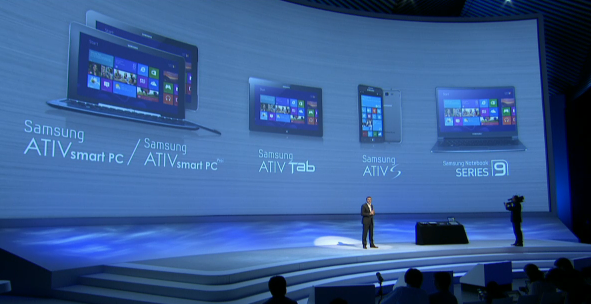
Samsung also is introducing a series of Ativ tablets, some using their new “S” pen technology (Bill Gates would be so proud!):

samsung devices

We’ll be hearing lots more about new tablets and phones as IFA continues during the week, but things are definitely heating up!


View the original article here

Thursday, September 6, 2012

Is this the Nokia “Arrow” Windows Phone 8 device?

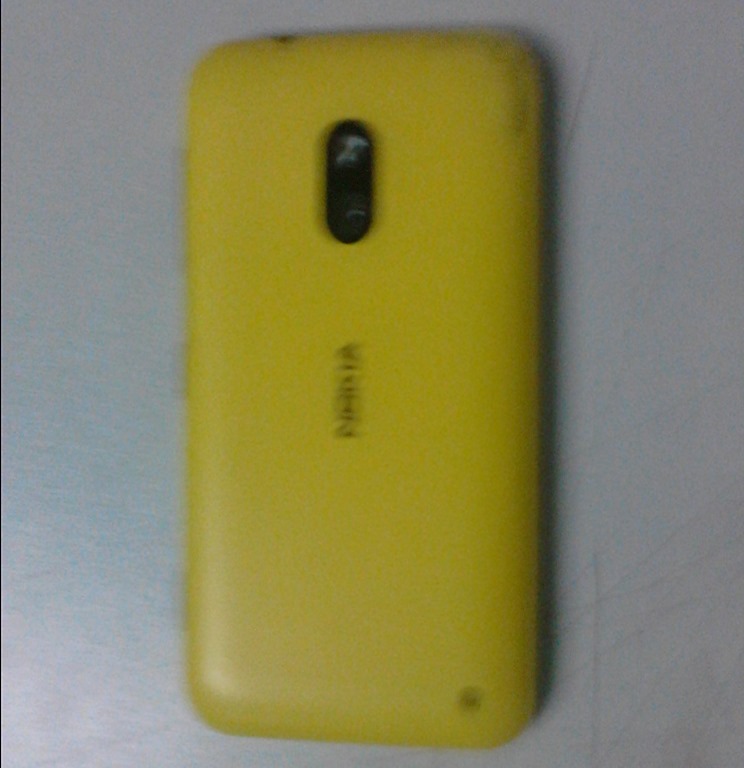
NokiaJust earlier this week we reported that a mid-ranged Nokia Windows Phone 8 device, codenamed Nokia “Arrow” (or “Atlas” for its CDMA variant), might be announced during Nokia World 2012, scheduled to be held in Helsinki, Finland on September 5. Today, a user had posted an image of the alleged Nokia Windows Phone 8 device on Chinese micro-blogging website Sina Weibo (via WeLoveWP.hk), which had been speculated to be the Nokia “Arrow”. Check it out below:

Nokia Arrow

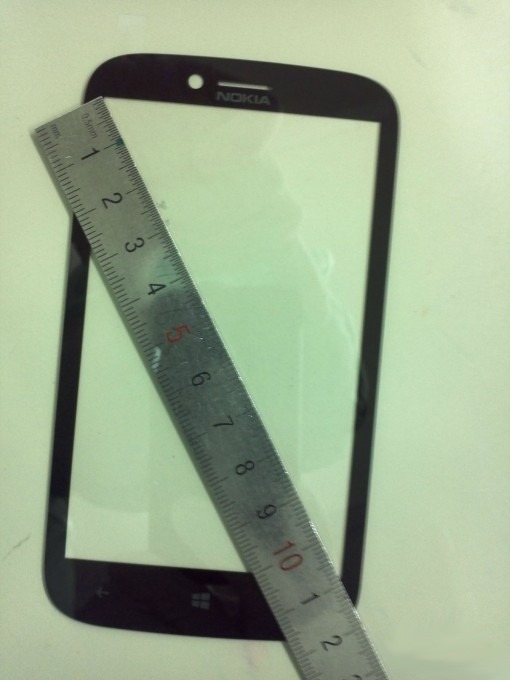
The device is very unlike leaked photos of the alleged Nokia “Phi”, which is said to be the successor to the Nokia Lumia 800 and 900, with a polycarbonate unibody design. This leads to speculation that this may be the other device to be announced next week – the Nokia “Arrow”. Whilst the photo above only shows the back of the device, the rounded corners and the shape of the device does in fact match another previously leaked images of a display-digitizer unit, allegedly coming from ALPS, a sub-contractor for Nokia who handles parts for their phone development. Check it out below:

Nokia Arrow front display panel

If the above image is in fact the Nokia “Arrow”, then the device might still sport a 4.3” display (compared to the rumored 4.7” display for the Nokia “Phi”), as well as a front-facing camera. Not much else is known about the device at this stage, but based on the photos above, it does seem to be a pretty decent phone. What do you think? Let us know in the comments below!

(And for those who thinks this might be related to another Nokia design patent, think again as the device depicted in that design patent is actually the Nokia Lumia 719, which we reported back in March this year to be a Windows Phone 7.5 device that is supposed to be coming to the Chinese market. We don’t know whether Nokia might have shelved plans for the Lumia 719, or repackaged it to be a low-end Windows Phone 8 device, but the chances that it is the Nokia “Arrow” is very slim.)


View the original article here

Mary Jo Foley: Windows Phone 8 launch date revealed

Windows PhoneA few weeks ago, we reported a rough timeline regarding the launch of Windows Phone 8. We saw Samsung kicking off the wave of Windows 8 and Windows Phone 8 news by announcing their ATIV line of tablets and phones. Next week we also expect Microsoft to be announcing more details about the consumer features of Windows Phone 8 on September 5, with Nokia also revealing their much awaited Lumia range of devices on the same date. HTC is also rumored to join in with the announcement of their new Windows Phone 8 line of devices around mid-September. Today Mary Jo Foley reported that Windows Phone 8 might be officially “launch” on October 29, a few days after the launch of Windows 8 on October 26, with devices coming a few weeks later:

October 29 will be the official "launch" of Windows Phone 8, I am told. I’m hearing this event will likely be on the west coast, either in San Francisco or Los Angeles. (Again, I don’t know exactly where. A photo studio? Outside an Apple store?) But this is considered the "consumer launch" of the product, with handsets to be made available starting a week or two later, meaning early November, as other sources of mine had indicated.

Given Mary Jo Foley’s accurate track record with launch dates, and the fact that the October 29 launch date seems to make sense such that Windows Phone 8 devices can be in people’s hands before the holiday season, we’re inclined to say this might in fact turn out to be true. However, as always, things may change last minute and Microsoft has not officially confirmed anything yet, so take this news with a pinch of salt. October definitely seems to be an exciting month for Microsoft!


View the original article here

Get Back the Sidebar Gadgets in Windows 8

Windows used to have a long sidebar which is a vertical bar that is displayed on the side of your desktop. It contains mini-programs called gadgets, which offer information at a glance and provide easy access to frequently used tools. These gadgets were available in Windows 7 and Vista. But with the release of Windows 8, Microsoft has completely removed the concept of gadgets and sidebar.

Now if you were using gadgets in Windows 7 and want to get it back in Windows 8, then you can probably try 8GadgetPack.

Screen8GP

This app works on Windows 8 (32/64-bit). This app will install all those original Windows gadgets available in Windows 7.

Options

The app comes with almost all popular gadgets like clock, calendar, CPU, disk usage, weather, slideshow, sticky notes etc.

If you love gadget on your Windows desktop, then this free app is for you.

Download 8GadgetPack


View the original article here

Start8 Brings the Original Start Menu in Windows 8

Windows 8, which is expected for final release on October 26th and one of the major change is the start screen. While many users accepted the new change, a majority of users were not happy with the implementation of it saying that it is suited only for touch screen tablets. In case you are not happy using the start screen on Windows 8, we had covered Start Menu X, a free app to get back the Windows 7 style start menu. Here is another freeware tool, Start8, which is now supported on Windows 8 RTM and will bring the exact start menu available in Windows 7 to Windows 8.

Start8

You can do all the options available in the classic start with this free tool. You can also launch and search metro style (modern UI) apps from the start menu.

Start8 start menu

You can change the start button to look like Windows 7 or even like Windows XP. You can easily access all the metro apps and also pin them to start menu.

Start 8 options

Start8 Features;

Features:

Adds a classic styled “Start” menu to the Windows 8 taskbar. Including support for: View and launch installed applications (including Metro/Modern), All Programs menu, quick links to commonly accessed folders (Documents, Music, Photos, Computer, and more).Adds searchable Start menu options for Windows desktop applications, Metro/Modern applications, and documents.Adds a “Start” button to the Windows 8 taskbar.Automatically load directly to your Windows desktop on login (vs the start screen).Pin favorite shortcuts directly to the start menu for easy access.Includes support for “jump lists”/recent documents for recently accessed programs.Quickly access Run… option via the start menu or right-click menu.Quickly access Shutdown… and power options via the start menu or right-click menu.Optionally disable Windows 8 desktop hotspots via right-click menu.Choose a custom “Start” button image.Automatically matches the color of your start menu to your taskbar.Supports WindowFX 5.1 startmenu animations (currently in beta)Optionally access Metro/Modern start screen in a configurable window without leaving the Explorer desktop. The new start menu also adds a shortcut to switch to the new Windows 8 menu.Adds control over Start menu size on Explorer desktopAdds option for WinKey to show fullscreen Metro desktop.

Overall, this is the perfect start menu replacement for Windows 8.

Download Start8


View the original article here

Wednesday, September 5, 2012

How to Pin a Folder, File, Shell Location or Library in Windows 8

Ever since the release of Windows 7, the taskbar has been made more functional with jumplists and app pinning. You can pin any application on to the taskbar for quick access. There were many limitations for this pinning as you cannot pin a file or folder or a shell location. Taskbar Pinner is a new freeware tool for Windows which allows you to pin any folder, file, shell location like recycle bin or hard drives or even libraries. The portable app is supported both on Windows 8 and Windows 7.

Taskbar pinner

There are four options in the main interface where you can select the action required. For Pin a Shell location, the application pops up a defined list of shell locations like control panel, my computer, recycle bin etc.

Shell location

If you select Pin a Library, it lists out all the libraries available on your PC.

Library pin

Features of Taskbar Pinner;

Pin ANY file regardless of its type;Pin ANY folder;Pin drive;Pin Control Panel items, all them including some hidden like God Mode/All Tasks, Network Connections;Pin Libraries;Pin Shell Objects like Run command, “Miminze All”, Window Switcher;Pin any drive,all folders and all files via Explorer Context Menu;Pin any folders or files with drag and drop. Drop them on application window.Pin any folders or files via command line:

The app also features option to add a context menu entry, which makes it still easier to pin any file or folder. You can simply right click on any file or folder and select the pin option. There are seperate versions of this app for Windows 7 and Windows 8.

Download Taskbar Pinner


View the original article here

Tuesday, September 4, 2012

Get the Start Menu and Start Button in Windows 8 RTM

One of the main changes in Windows 8 is the new metro UI or the modern UI start screen and it completely replaces the old classic style start menu. While many like the new start screen, there has been constant complaints from people that the new start screen is best only on touch screen tablets and not suitable for desktop. While many developers created apps to skip the start screen, most of them do not work on Windows 8 RTM.

Start Menu X is a nice freeware app, which is perhaps one of the best start screen alternative and brings back the classic start menu and start button to Windows 8.

Start menu Windows 8

There are two aspects for the programs, one is that it adds a start button which is customizable and secondly it add the traditional start menu seen in Windows XP. You can even create your own start button and use it on Windows 8.

Another nice feature of the app is that while installing, you can select whether you want the start button or not.

installing

There is also option to select whether you are accessing the start menu using mouse or touch.

Touch or mouse

Overall, the app is perfect replacement for Windows 8 and is fully compatible. There is also a pro version which allows you to add folders to start menu.

Please note that when you install this app, the metro start screen will not be accessible and so is the app switcher.

Download Start Menu X


View the original article here

HP Envy x2 Convertible Windows 8 Tablet Has Optional Keyboard Dock, Premium Feeling (Video)

The convertible tablet format has been trendy lately, especially for Windows 8 devices. We’ve seen ASUS adopting it, Samsung too and even Lenovo and Acer tried it. Now HP does the same thing, but they have a more premium approach through the HP Envy x2 convertible slate model. Envy x2 comes with an optional keyboard dock, that turns the tablet into a laptop or ultrabook.

We get a device with a thin design, aluminum build quality (both the keyboard dock and rear of the slate), plus Beats Audio technology for improved sound experience. The device is based on the Intel x86 Clover Trail chipset, so it gives you the full Windows 8 experience and not Windows RT, the one that’s limited for ARM chipsets. HP Envy x2 packs a bright 11.6 inch HD touchscreen with IPS technology and 400 nits of brightness. It also has NFC support and has an optional digitizing pen. At the back we find an 8 megapixel camera and at the front there’s a HD quality webcam.

Separating this product from its rivals is an unique hinge, activated by magnets. Instead of requiring that extra push to fit into the locking on mechanism, we get this option of docking system with magnets. Each piece, the tablet and dock weighs 1.5 pounds and the total weight matches the one of an ultrabook. The pricing is yet unknown, but what we do know is that the product is coming towards the end of the year.

If you like this post, make sure you subscribe to our RSS Feed or follow us on Twitter, Facebook, Google+, YouTube for more interesting articles and video reviews! Also you can recommend Tablet News on Google:

View the original article here

Monday, September 3, 2012

IFA 2012: Dell XPS 10 Windows RT Tablet Offers 20 Hours of Battery Life, Showcased Today

Dell joined the bigshots unveiling new tablets with Windows 8 and Windows RT at IFA 2012. I’m talking about the Dell XPS 10, that’s a 10 inch Win RT slate, once again with a format involving a removable keyboard dock.
Dell XPS 10 is supposed to have a very impressive battery , that lasts 20 hours with a single charge.

Of course, the 20 hours mean without full Windows apps, since Windows RT only runs a smaller version of the applications, especially created for the ARM platform. Dell partnered with Qualcomm for this initiative, the famous brand that gave us the Qualcomm chipsets of the last year. At the front we have a HD touchscreen and other features include a microUSB port and microSD card slot, as well as a 10 mm thick chassis. Bluetooth and WiFi are included among the specs and Dell may also integrate 3G/4G in the future.

Pricing is still a mystery, as is the rest of the specs of the Dell XPS 10, but I suppose a Snapdragon S4 or S4 Pro is a pretty good guess for the device, plus 1 or 2 GB of RAM. 16GB of storage and USB ports should also be here.

If you like this post, make sure you subscribe to our RSS Feed or follow us on Twitter, Facebook, Google+, YouTube for more interesting articles and video reviews! Also you can recommend Tablet News on Google:

View the original article here

NVIDIA Announces Unreal Engine 3 for Windows 8 and Windows RT (Video)

We enjoyed the beautiful graphics offered by the Unreal Engine 3 on our PC with titles like Borderlands and the sequel, Gears of War, Infinity Blade on iOS and Tuork. These are to name just a few as the the list is much longer with the UDK (Unreal Development Kit) for version 4 available for developers since July this year. To bring  Unreal Engine 3 is a major breakthrough for Nvidia and this is just the begining.

NVIDIA Announces Unreal Engine 3 for Windows 8 and Windows RT (Video)

At the first press day of the IFA technology trade fair held in Berlin, NVIDIA showed the Unreal Engine 3 flagship demo known as Epic Citadel on a ASUS Windows RT tablet powered by Tegra. The demo ran on the latest announced ASUS Vivo Tab RT tablet. Epic Citadel is developed on the Unreal 3 graphics engine, behind some of the most popular PC games. The version presented at the press event is fully implemented, available for PC games, which will allow game developers to provide support for NVIDIA Tegra and Windows RT. It will also give developers unprecedented support for porting PC and Xbox games to a mobile platform, and vice versa. Mark Rein, vice president of Epic Games stated:

“By porting the full engine as opposed to a modified mobile version, NVIDIA and Epic have made it easy for UE3 developers around the world to bring their best content to Windows RT, Windows 8 and NVIDIA’s Tegra 3 processor. Windows RT code is available to licensees from Epic now and we’re excited to see the great games they develop with it.”

NVIDIA states that this is just one of the things it’s doing to support the Windows RT platform. We can expect further announcements closer to the Windows RT launch on Oct. 26. In the mean time enjoy the demo video:

If you like this post, make sure you subscribe to our RSS Feed or follow us on Twitter, Facebook, Google+, YouTube for more interesting articles and video reviews! Also you can recommend Tablet News on Google:

View the original article here

Sunday, September 2, 2012

Capture One Express 6 Free License Code (Windows & Mac)

Capture One 6 is a professional RAW conversion and image editing software from Danish company Phase One, which specialises in high-end medium format cameras. Capture One 6 has all the essential, easy-to-use tools in one powerful package. Import, organize, edit and print images in a fast, flexible and intuitive way to enhance and streamline your digital workflow.

Capture One 6 for Mac and for Windows is commercially available in two versions: Capture One Express 6 and Capture One Pro 6.  Capture One Express and Capture One Pro are based on the same platform and share the same image engine, but contain a different feature set.

Capture One Express 6

A few of the new features in Capture One Pro 6:

Local adjustments edit selected areas of images non-destructively;Black and white conversion — precisely adjust color channels to create split toning effects when converting to grayscale;Keystone correction — reduces or eliminates perspective distortion while maintaining dimension integrity;High-quality, simple to use printing options.Capture One Pro 6 has been built to support an upcoming iPad, iPhone and iPod Touch application called Capture Pilot(TM) that will allow you to wirelessly view, zoom in on, and pan high resolution RAW, JPEG and TIFF images from leading DSLR and medium format camera systems.

Also available in Capture One Express 6:

Extended Camera Support. Support for most popular DSLRs and digital backsIntegrated Movie Import. Import, browse and play video, including HD video, from DSLR camerasEnhanced metadata support including XMP sync, Auto Load and a GPS link to Google Maps(TM);A Loupe tool, which is a powerful magnifier to zoom into an image from 25 to 200 percent;Integrated movie import, viewing and handling;Search and filter that makes it easy to find, sort and organize images on the fly;Advanced, token-based file naming;Native 64-bit operation and OpenCL/GPU acceleration for substantially improved performance.Color editor. Achieve perfect colors through selective color adjustments

Access this page for a complete list of features available in the two editions.

Capture One Express 6 Free License Code (Windows & Mac):

Capture One Pro 6 is available via download for 399 USD and 299 EUR, while Capture One Express 6 is available for 99 USD and 69 EUR. Capture One Pro 6 and Express 6 are paid upgrades to previous versions of Capture One. Upgrade prices start at 69 USD and 49 EUR. But as part of the developer’s  giveaway promotion, the interested users are now entitled to download the full version Capture One Express 6  (Windows & Mac) with  license code / serial number for free.

For anyone who does not have a RAW editor, and wants to start shooting RAW, or any one who already have a program, but want to try a different one, here is the way to get Capture One Express 6 for free:

1. Visit the promo page here (Page in German, use Google Translate if necessary) or here , enter the required details, and then click on the “Seriennummer anfordern” (Request Serial Number) button.

2. Your free license code /serial number  will be sent to your mailbox within few seconds.

3. Download the appropriate package for your system (Windows or Mac) from this link. Install and active full version with received license code / serial number.

Updated: The old promo (I shared on on Jul 14, 2011) is still working and I found another new promo for Capture One Express 6. I change the date published for this post to make it up. Hope you will enjoy this professional RAW conversion and image editing software. Thanks to Harry for the new promo.


View the original article here

Wednesday, August 29, 2012

Windows 8 Lets Microsoft Know About the Apps You Install… Creepy Right?

It appears that there’s an interesting mechanism in Windows 8, one that automatically and instantly informs Microsoft about every app that you download and install on the OS. The info comes from programmer Nadim Kobeissi and is added to the long list of complaints regarding the OS, including the lack of a Start button and the Metro interface look.

The feature that sends MS the info about the apps is called SmartScreen. Microsoft responded to the allegations by saying that the function is meant to protect users from malicious programs by screening applications installed from the web and sending the info to MS for safety checks. The same programmer mentioned before says that it could be possible to intercept the SmartScreen communications and actually get all the data from your apps, some of them even banking related. Sucks, right?
Know that the feature called SmartScreen is turned on by default and when you disable it, Windows will press you to re enable it. Also, I guess that people will think twice before installing pirated games/software on their systems, especially if it’s a pirated Halo or Office, am I right? Privacy breach much? What’s next, Microsoft going through our music files?
If you like this post, make sure you subscribe to our RSS Feed or follow us on Twitter, Facebook, Google+, YouTube for more interesting articles and video reviews! Also you can recommend Tablet News on Google:
View the original article here

Sunday, August 26, 2012

Windows Media Player 12 Tricks – Make your Entertainment more Amusing

Windows Media Player 12 has got more new features and traits. Windows Media Player 12 is seemed to be most popular since most people consider it to be the best media player ever launched by Microsoft. There are various Windows Media Player 12 tricks that can help you to use the player in the easier way.
Here are some of the best Windows Media Player tricks.
Windows Media Player 12 provides three options of looks such as the “Default Full Mode”, “The Compact Mode” and “Skin Mode”. While you listen to music, you can easily switch to compact mode by clicking on a small arrow. You can just press the “Enter” key to return back to the Full mode. You can apply the skin mode by going to Menu option and then clicking on “View” and then on “Skin Mode”. You can also opt to use shortcuts too. You can use “CTRL+1” for Full mode and “CTRL+2” for Skin mode.Full screen to compact mode Windows Media Player 12 Tricks – Make your Entertainment more Amusing
You can use 3 different keys to increase, decrease and mute volume easily. They are F9, F8 and F7 respectively.
Since Windows Media Player is never bundled with all the codecs available, this is one of the best Windows Media Player 12 tricks. However, there are some freely available codec packs filled in Windows Media Player that help you to play anything and everything right from Real Media to DivX. To know the codecs that are installed in your Windows Media Player, you need to click on “Help” option and then select “About Windows Media Player” option. You can then click on “Technical Support Information”. You will view a browser page that lists out the audio and video codecs present in your Windows Media Player. Using the K-Lit codec pack, you will be able to play anything. However you also need to have XP codec pack and Vista codec pack. These two types of codecs can be downloaded from the following links:
Resolve codecs Windows Media Player 12 Tricks – Make your Entertainment more Amusing
You can easily search your library for audio tracks by using a blend of search terms. You can use “AND” and “OR” operators to search. For instance, you can use the “AND” operator to search by song and singer by just applying AND operator in between the song name and the singer name. Likewise, you can use “OR” operator to search over two features. You can have a look at the help file by typing “How do I perform advanced searches” in the “search help” boxSearch function Windows Media Player 12 Tricks – Make your Entertainment more Amusing
This option allows you to increase the bass of an audio track for high quality sounds. You can access the “SRS WOW Effects” under the menu View>Enhancements. You can turn on the SRS WOW Effects and then choose the type of your speaker. You can move the Trubass and WOW effect sliders as per your wish.
Streaming content relies mainly on buffers to playback the audio track or a movie in a smooth manner. To balance the temporary interval of internet bandwidth because of slow internet speeds or packet drops, Window Media Player will store a few seconds of the content before it actually starts to play. Once the streaming starts, some content will be stored in the backdrop which is known as the buffer. You can change the buffer size if you sense that the streaming is not that smooth. Go to the “Options” menu and then choose “Performance” tab.
Under the “Networking buffering” option select the buffer option and then enter value between 0 – 60 to enable the streaming media to buffer that amount of content before it starts to play. However, you need to note that surplus buffering can slow down the download.Level the streamed music flow Windows Media Player 12 Tricks – Make your Entertainment more Amusing
If you desire to watch movies with subtitles and if you have Windows Media Player 12 installed on your system, you might wonder what to do. There is a simple process that can help you to watch movies with subtitles. You need to download and install DirectVobSub add-on to offer access to famous subtitle formats along with the video file. You also need to consider two important points. Make sure that the filename of the subtitle is the same as the name of the video [but see to that you don’t change the file extension] and also ensure that both the video and subtitle files are located in the same folder.
Watch Movies with Subtitles Windows Media Player 12 Tricks – Make your Entertainment more Amusing
So from now on use these Windows Media Player 12 tricks and master your movie watching experience which is a whole new world of entertainment.
Download Portable Windows Media Player 12 for XP and Vista
View the original article here

How to Block a Website in Firefox, Chrome, Windows 7 and XP

Now a days Internet and World Wide Web is playing a vital role through out the globe. It is being used by huge number of people ranging from students to people of almost all spheres. Even though it has made life easy for paying bills online,booking railway tickets, shopping online, auctioning, placing orders etc.
Besides this, social networking sites distract children from study, some sites contain offensive contents and porn pictures which are a threat for young generation. Some sites even contain spams, viruses, and malwares. While opening those sites these malicious files automatically get downloaded to the local system and affects the system, even sometimes the systems are hacked to get valuable information from the concerned computer. In order to prevent these things, it is required to block these sites. Here we will see how to block websites in different browsers:block website How to Block a Website in Firefox, Chrome, Windows 7 and XP
Before observing different ways to block websites, we will first understand what blocking of website means. It means denial of access of a particular URL address of a website or content of a website temporarily or permanently and meanwhile user will not be able to access those sites and contents as well.
Following are the steps to be followed to block a website in Firefox
1. Navigate to Hosts file which are located at
C:\WINDOWS\SYSTEM32\DRIVERS\ETC for windows Vista and XP
C:\WINNT\SYSTEM32\DRIVERS\ETC for Windows 2k
C:\WINDOWS for Windows 98 and ME
2. Open Hosts with a notepad
By default Windows Hosts looks like below
# Copyright © 1993-1999 Microsoft Corp.
#
# This is a sample HOSTS file used by Microsoft TCP/IP for Windows.
#
# this file contains the mappings of IP addresses to host names. Each
# entry should be kept on an individual line. The IP address should
# be placed in the first column followed by the corresponding host name.
# The IP addresses and the host name should be separated by at least one
# space.
#
# additionally, comments (such as these) may be inserted on individual
# lines or following the machine name denoted by a “#” symbol.
#
# For example:
#
# 102.54.94.97 rhino.acme.com # source server
# 38.25.63.10 x.acme.com # x client host
#
127.0.0.1 local host
3. Now under the line 127.0.0.1 Local host, we just have to type:
127.0.0.1 The URL we want to block
For example if we want to block the www.facebook.com homepage we have to type:
127.0.0.1 www.facebook.com
like this we can add as many sites we want to block in Firefox
4. After this we have to close the notepad and answer YES when asked.
5. Then we have to reboot the computer and then have to try to navigate to the website we have blocked. We will see a ‘cannot find server’ message on the screen.
Following are the steps we need to follow to block websites in Google chrome
We have to open Windows Explorer and locate the folder ”C:/windows/system32/drivers/etc”Then we have to right-click on the hosts file and choose open and open the file in notepad.Now at the bottom of the document, we have to add the numbers 127.0.0.1 followed by at least one space, followed by the URL of the website we want to block.Then we have to save the file and restart the systemNow, any attempt to visit the site you blocked in Chrome  will show connection failedFollowing are the steps we need to follow to block websites in Windows 7
We have to click on the start button and search for Internet OptionsNow in a new window, Internet properties will open. Then we have to click on sites, which will be under the privacy tabWe have to add the websites over here which we want to block. Text field is provided in the next window. Then we have to click on the Block button to block the website and then have to click on OKNow, any attempt to visit the site you blocked in Windows 7  will show connection failedFollowing are the steps we need to follow to block websites in Windows XP
We have to load Internet explorer and have to click on tools->Internet options.Now we have to click on Privacy tab. Under the privacy tab we have to click on sites.In sites we just have to type the URL we want to block and then we have to click on OK.Now, any attempt to visit the site you blocked in Windows XP  will show connection failed.This was the information about how to block websites in Firefox, Chrome, Windows 7 and Windows XP. Hope you will find this information useful.
View the original article here

Latest and New Windows 8 Wallpapers – 2012

Here in this article we are going to enlist brand new Windows 8 Wallpapers. Before enlisting we will discuss Windows 8 Wallpapers and its features with extensibility property. Moreover we will see how to set wallpaper on your desktop (the main screen that is visible to user immediately upon booting) through the following steps:
Right click on desktop screen (By Default it will have some wallpaper set appears immediately upon booting).
Select the option “Properties”.Choose “Desktop” tab.Click on “Browse” Button to select the desired wallpaper, saved in directory.Click on “Apply” followed by “OK” to apply the changes.After setting the wallpaper, you will get new wallpaper chosen once you boot your system.
Dual Monitor support was there in all the previous versions of Windows but wallpaper can be set for the primary monitor not for the secondary but here in Windows 8 wallpaper and taskbar can be extended to Secondary Monitor as well.
To extend the wallpaper, you need to have wallpaper of right dimension with proper resolution so that it can be extended in both the monitors. All the Windows 8 wallpapers have high pixel density with High Resolution and Retina Display feature which can be minimized to lower Resolution as well.
Wallpaper can be extended through the following steps:
Right Click on the DesktopClick “Customize”Select “Windows Extended” under Aero Themes.Having selected, choose your extended wallpaper.Click on “Desktop Background” followed by browsing to the location where Extended Wallpaper is saved to set the wallpaper for the multiple monitorsIf it is not set through the above steps, navigate to the wallpaper, right click on it and select “Set for all monitors”.
So here is the list of high resolution Windows 8 wallpapers:
windows 8 1 Latest and New Windows 8 Wallpapers 2012
windows 8 2 Latest and New Windows 8 Wallpapers 2012
windows 8 3 Latest and New Windows 8 Wallpapers 2012
windows 8 4 Latest and New Windows 8 Wallpapers 2012
Windows 8 Concept Latest and New Windows 8 Wallpapers 2012
Windows 8 Fire Latest and New Windows 8 Wallpapers 2012
Windows 8 Infinity Latest and New Windows 8 Wallpapers 2012
Windows 8 The New Begining Latest and New Windows 8 Wallpapers 2012
Windows 8 Colourful Latest and New Windows 8 Wallpapers 2012
Windows 8 Nature Green Latest and New Windows 8 Wallpapers 2012
Windows 8 Blue Latest and New Windows 8 Wallpapers 2012
Windows 8 Abstract Latest and New Windows 8 Wallpapers 2012
windows 8 8 Latest and New Windows 8 Wallpapers 2012
windows 8 9 Latest and New Windows 8 Wallpapers 2012
windows 8 10 Latest and New Windows 8 Wallpapers 2012
windows 8 11 Latest and New Windows 8 Wallpapers 2012
windows 8 13 Latest and New Windows 8 Wallpapers 2012
windows 8 14 Latest and New Windows 8 Wallpapers 2012
Windows 8 Abstract Blue Latest and New Windows 8 Wallpapers 2012
Windows 8 Simple Latest and New Windows 8 Wallpapers 2012
So, in this article we have given a long list of Windows 8 wallpapers. You can choose any of them and set it as wallpaper in your desktop and enjoy the Windows 8 flavor.
View the original article here